How to Set Up Microsoft Authenticator
A step-by-step guide to downloading and configuring Microsoft Authenticator for multi-factor authentication (MFA) on your Microsoft 365 account.
What is Microsoft Authenticator? It's a mobile app that adds a second layer of security to your accounts. When you log in, the app generates a unique code you must enter alongside your password — so even if your password is stolen, your account stays protected.
Why is MFA required?
Relying solely on passwords is no longer sufficient to protect business accounts. Cyber threats have become increasingly sophisticated, making it easier for attackers to crack or steal passwords. Microsoft Authenticator adds an essential layer of security — by requiring a second form of verification from your mobile device, it significantly reduces the risk of unauthorised access.
Download the Microsoft Authenticator app
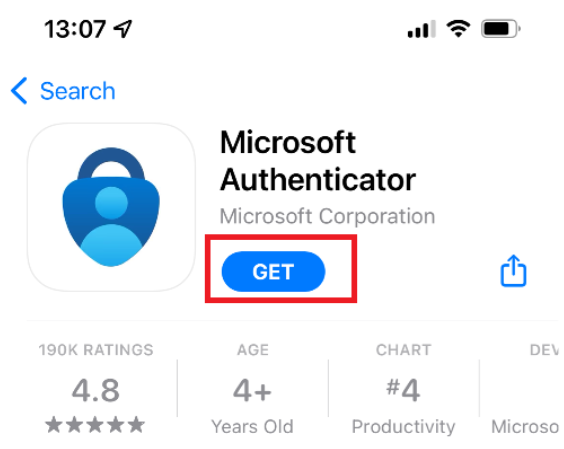
On your mobile device, open the App Store (iPhone) or Google Play Store (Android). Search for Microsoft Authenticator and install it.
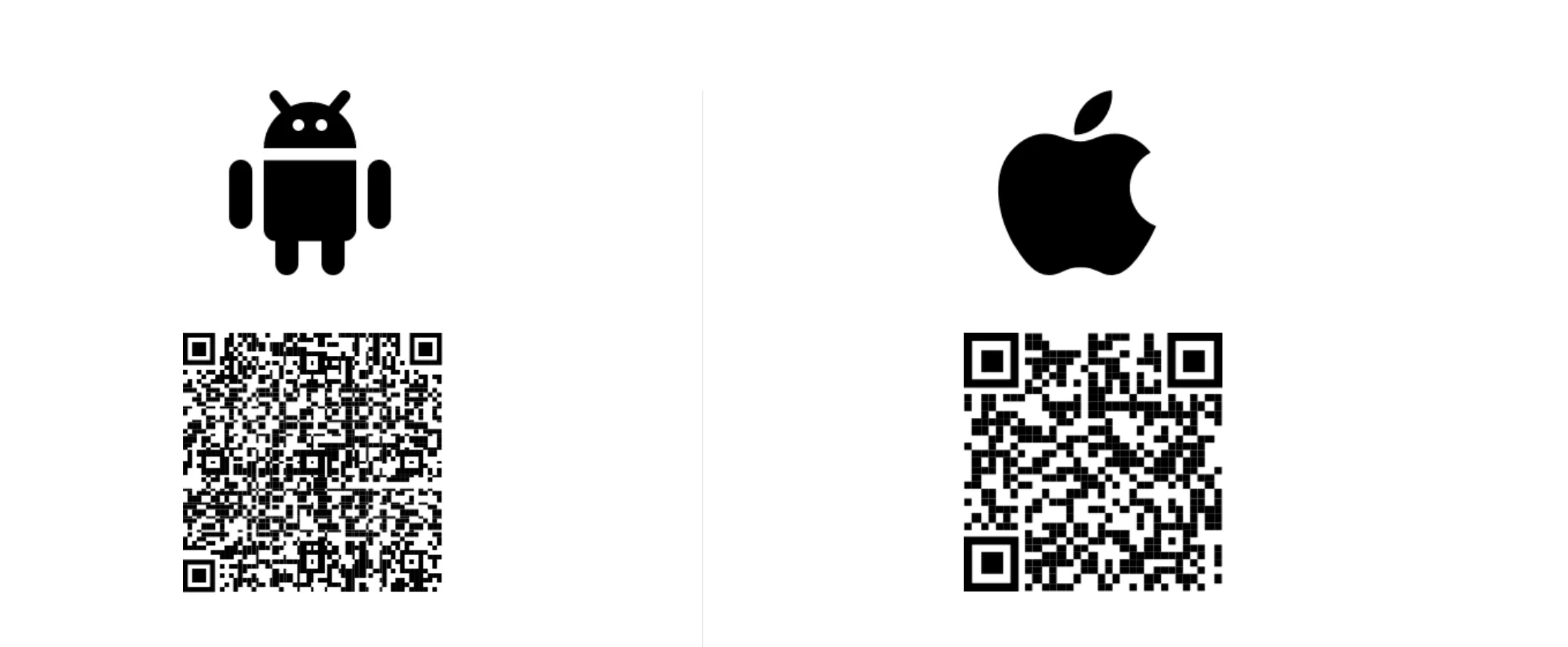
Both stores contain fake authenticator apps. Scan the QR code below to go directly to the correct app — available for both Android and Apple.
Sign in to your Microsoft 365 account
On your computer, open a web browser and go to office.com. Sign in with your work email address and password.
Complete the "More information needed" prompt
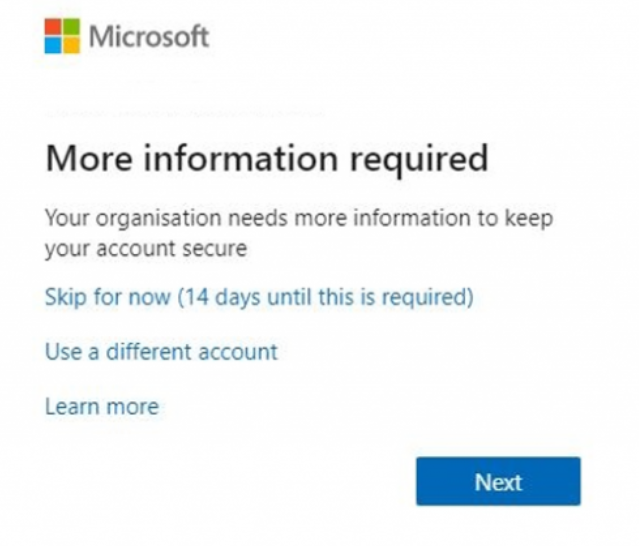
After signing in you should see a page saying "More information needed." Click Next to continue.
Set up Microsoft Authenticator
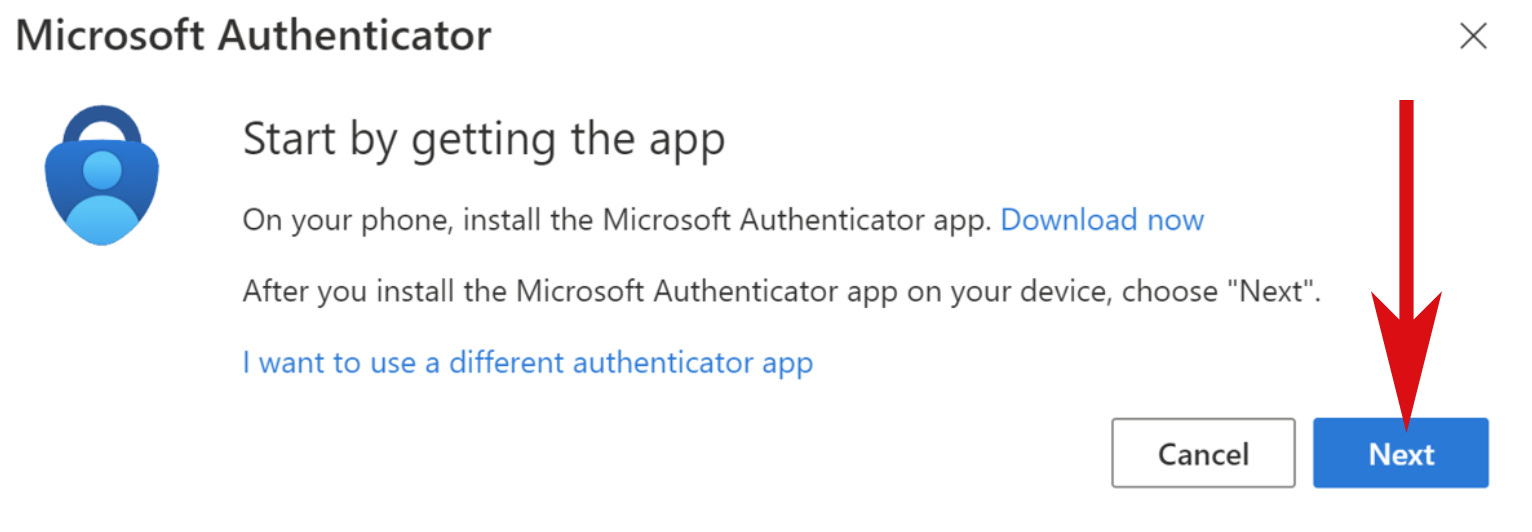
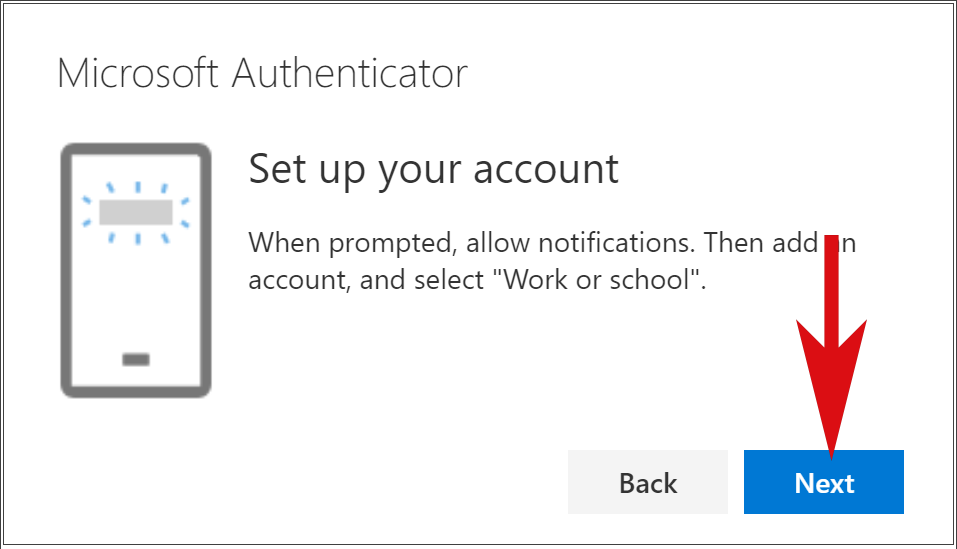
You will be prompted to download the Microsoft Authenticator app. Since you've already installed it, click Next. Click Next again when it says "Set up your account."
Scan the QR code
A QR code will appear on your computer screen. Open the Microsoft Authenticator app on your phone, tap the + button, select Work or school account, and scan the QR code.

Verify the setup
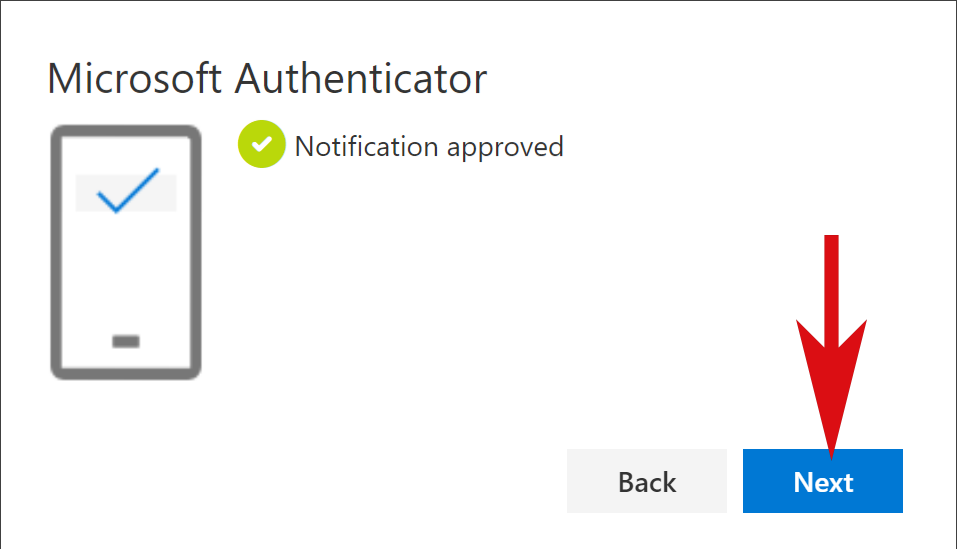
Click Next on your computer. A number will be displayed on screen — your phone will show a notification asking you to enter that number. Enter it in the app to confirm the setup is working.

Microsoft Authenticator is set up
Your account is now protected with multi-factor authentication. Each time you sign in you'll receive an approval request or code on your phone.
Prefer to watch a video?
We've uploaded a full walkthrough to YouTube if you'd prefer to follow along visually.
Need help rolling this out across your business?
We can configure and enforce MFA across your entire Microsoft 365 organisation. Contact us or submit a support ticket and we'll get it sorted.